Advanced EPG Dummies
PRO See Free vs Pro.
Advanced EPG Dummies (AEDs) turn a channel name into an event-aware channel. An AED can identify the event, extract useful values from the provider name, format the output name and description, and select a suitable logo.
AEDs are especially useful for sports channels whose event names change throughout the day. They can also be used for other provider channels that follow a predictable naming pattern.
Warning
AED results depend on the source naming pattern and the available event data. Test an AED against several real channel names before applying it to a large group.
For field syntax, open AED Templates and Regex. For testing, refresh, AI assistance, and bulk changes, use Manage and Refresh AEDs.
If numbered provider channels need fixture text for matching, see TXT Fixture Names for AEDs.
Open the AED editor
- Open the Sources menu.
- Select AED Editor.
- Choose an existing AED or create a new definition.
- Configure the matching, output, and logo fields.
- Use the tester before saving or refreshing assigned channels.
The related AED Bulk Updater can apply a change to multiple existing AEDs. Import and export tools are available from the same Sources menu where supported by the account and release.
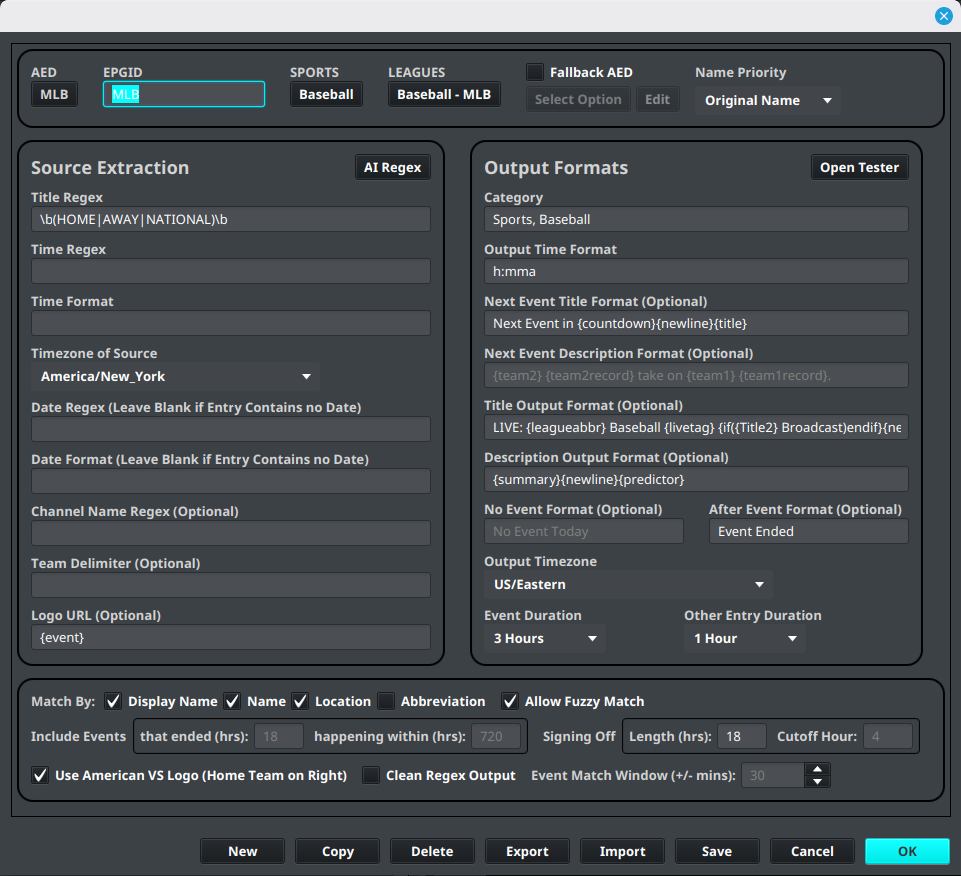
The AED editor's timing controls include Signing Off Length (hrs) and Cutoff Hour. The cutoff hour is a 24-hour value from 0 through 23 and controls the overnight boundary used when signing-off output is written.
Manage AEDs in the Dummy Guide inventory
In 3.11.108 and later, open Sources → Dummy Guide Inventory to find AEDs, check which layouts and groups use them, and review their sports/leagues, event counts, fallback AEDs, and last-updated information. Filter Type to AED or Sports AED, then use Usage or search to narrow the list. Double-click an AED to edit it, or select Add AED to create one.
The inventory also supports importing, exporting selected AEDs, and deleting selected entries. See Dummy Guide inventory for the screenshot, controls, and deletion guidance.
League Based and Regex Based AEDs
AEDs can be used in two main ways. Choose the approach that matches the data available from your EPG source.
| AED approach | How it works | Best suited for |
|---|---|---|
| League Based | Matches a channel to sports and league event data, then uses the matching event to populate teams, league, venue, time, logos, and other placeholders. | Sports channels whose names identify a league or sport and whose events are available in the sports data. |
| Regex Based | Reads the provider channel name and uses regular expressions to extract the title, date, time, or other values. | Non-sports channels, custom event feeds, or providers whose event details are not available in the sports data. |
League Based AEDs can also use regex. Title Regex can provide additional {title} fields, while Date Regex and Time Regex can extract event dates and times from provider names. Supplying date and time regex is recommended when those values are present in the channel name because it can speed up AED event matching and processing.
Regex Based AEDs do not need a league match to create an output channel name. They rely on the provider naming pattern, so similar channel names and representative test samples are especially important.
How an AED is evaluated
The exact steps depend on the AED approach, but an AED normally combines three jobs:
- Match the provider channel. A League Based AED uses its sport and league settings; a Regex Based AED uses Channel Name Regex.
- Extract event values. Sports event data and regex fields populate placeholders such as
{title},{team1}, and{league}. - Format the result. Output fields use placeholders to produce the channel name, event title, description, and logo URL.
If no event is active, the channel can fall back to its provider name or to the AED's no-event behavior, depending on the configuration. If event data was not available when the source synchronized, IPTVBoss can retry eligible no-match sports assignments after a successful source synchronization or during a later sports-data refresh. The retry uses the committed sports dataset and keeps explicit No Event assignments out of the retry.
Before a startup source sync or output operation that depends on sports data, IPTVBoss waits for the sports dataset to be ready. If a database transition is still in progress, the source sync or XC response preparation is deferred until the active database and sports data agree. This prevents a temporary startup state from being saved as a default no-event result.
AED database integrity repair
See AED Troubleshooting if startup reports an assignment integrity repair.
Output timing and signing off
Use AED Defaults to set reusable timing values for new or inherited AED configurations. The defaults include event duration, the window for including ended events, signing-off length, and Signing Off Overnight Cutoff Hour (0-23).
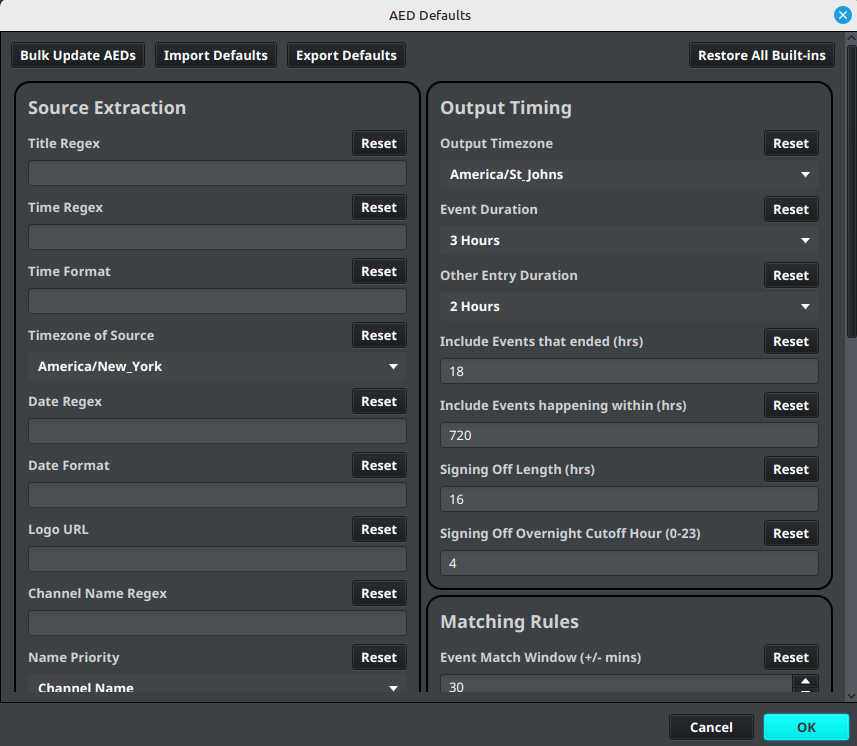
An individual AED or advanced dummy channel can override inherited values. Use the channel-level controls when one event feed needs different signing-off behavior from the general defaults. Keep the cutoff between 0 and 23; the default installation value is 4.
Reference and maintenance
| Task or field | Instructions |
|---|---|
| Output placeholders | Output placeholders |
| Conditional output | Conditional output |
| Sports logos | Sports logos |
| Regex fields | Regex fields |
| Channel Name Regex | Channel Name Regex |
| Title Regex | Title Regex |
| Time Regex | Time Regex |
| Time and date formats | Time and date formats |
| Test and refresh an AED | Test and refresh an AED |
| Refresh AED results | Refresh AED results |
| Related tools | Related tools |
| AI Regex Suggestions | AI Regex Suggestions |
| AED Bulk Updater | AED Bulk Updater |