Playlist Categories
Playlist category settings control which Live, VOD, and Series categories IPTVBoss imports from an M3U or Xtream Codes source. A new source must load its categories before it can be saved. When the M3U or Xtream Codes source fields are valid but the category list is empty, selecting Save opens the category manager automatically.
Load and select categories
- Select Manage Categories while adding or editing a playlist source, or select Save on a valid new source to open it automatically when no categories have been loaded.
- Select Refresh Categories.
- Wait for the provider's current categories to load.
- Select a category. Use Ctrl-click on Windows/Linux or Command-click on macOS to select multiple categories.
- Right-click the selection and choose the required action.
- Repeat the selection independently for Live, VOD, and Series.
- Close the category view to keep the selection, then save the source.
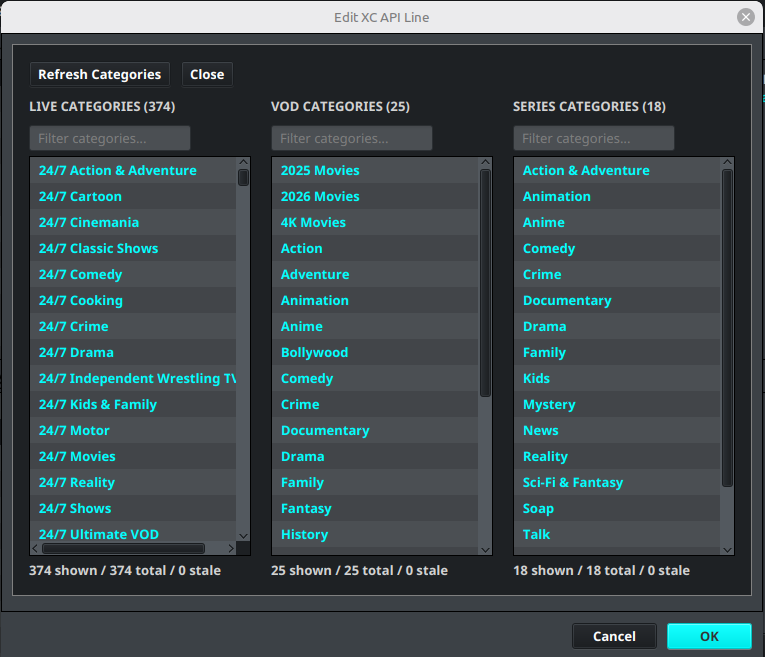
Understand the category lists
The dialog contains separate lists for Live Categories, VOD Categories, and Series Categories. The count below each list reports how many categories are shown, how many exist in total, and how many are stale. Use the text filter above a list to narrow categories by name.
Use the Status selector to filter all three lists by All, Stale, Active, or Disabled:
- All shows every loaded category.
- Stale shows categories that are no longer current in the provider data.
- Active shows categories included by the source.
- Disabled shows categories excluded by the source.
Status and text filters work together. Staleness is independent of inclusion, so a stale category can also be active and match both the Stale and Active filters. The Clear Stale button removes stale categories currently visible in a content-type list; Clear Selected Stale performs the same cleanup for selected rows from the context menu.
The right-click actions include:
- Select All selects every category in the current list.
- Enable Selected includes the selected categories in the source.
- Disable Selected excludes the selected categories from the source.
- Clear Selected Stale removes selected categories that are no longer current, when stale categories are present.
For a first setup, enable a small set of Live categories. Add VOD or Series only when you intend to include that content and understand the related output settings.
Choose the right category tool
| Task | Tool |
|---|---|
| Choose which provider categories the source imports | Manage Categories, described above |
| Add existing channels to a layout | Channel Importer |
| Place newly discovered channels into an existing group | New Channel Manager |
| Add newly discovered categories as layout groups | New Category Manager |
Maintain an existing source
Refresh the categories after the provider adds, removes, or renames content. After changing the enabled categories:
- Save and synchronize the source.
- Review the imported channel totals in Sources Manager.
- Confirm that affected layouts still contain the intended groups and channels.
- Review New Category Manager when newly discovered provider categories should be added to a layout automatically.
When you open Category Manager by clicking a category statistic in Sources Manager, IPTVBoss opens the selected source directly and preselects the content type and status filter represented by that statistic. The Total, Active, and Stale values open the corresponding All, Active, and Stale views.
Playlist category selection controls what the source downloads. New Category Manager is a separate layout-level rule and does not enable or disable source categories.