Completing the First Run
After installation, start IPTVBoss and confirm that the application can open its local configuration and database.
Start IPTVBoss
- Start IPTVBoss from your operating system’s application menu.
- Wait for the startup process to finish.
- Confirm that the main window opens without a database or configuration error.
If the database already contains sources, eligible sources may begin a deferred Sync on Start batch after the main window opens. Allow the batch to finish before generating output, or select Cancel in its progress view and run the source sync later from Sources Manager.
The first launch creates or opens the local IPTVBoss data used by the application. Preserve the application data before making major changes.
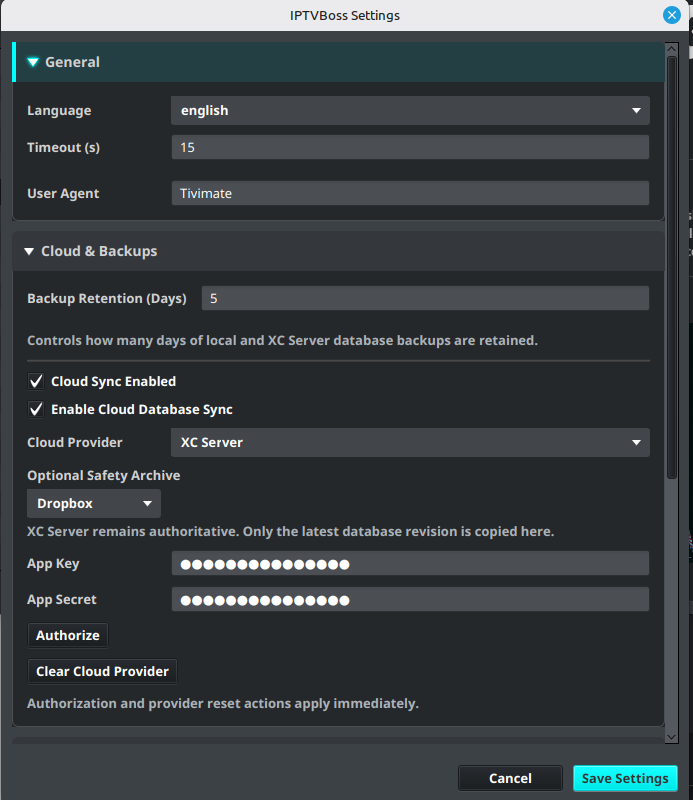
Check your application settings
Open Settings → IPTVBoss Settings and review the available application settings. Do not change a setting unless you understand what it controls.
Confirm that:
- The application opens normally after restarting.
- The intended database is being used.
- The output location is known before you generate files.
- Your operating system and application version are recorded for support.
Activate Pro when applicable
If you have an IPTVBoss Pro subscription, open IPTVBoss Pro Settings to enter or activate the credentials supplied with your account. Pro-only controls may remain locked until the account is validated.
Note
Do not paste a token, license key, or account credential into a screenshot or support ticket. Describe the error without exposing the secret.
Existing databases
If you are updating or moving IPTVBoss, do not create a new empty database until you have confirmed that your existing database is backed up. Follow Updating IPTVBoss and Restore a Database Backup before restoring data.
Confirm that setup is complete
The first-run setup is complete when you can:
- Open Sources.
- Open Layout Manager.
- Open Settings without an error.
- Continue to Adding a playlist.
Note
Startup and activation screens may change between releases. Confirm the labels shown by the installed version.