Server Console: Link Restore
IPTVBoss Pro
XC Server requires Pro.
Use Link Restore to replace or initialize the active XC Server database from a supported backup link workflow.
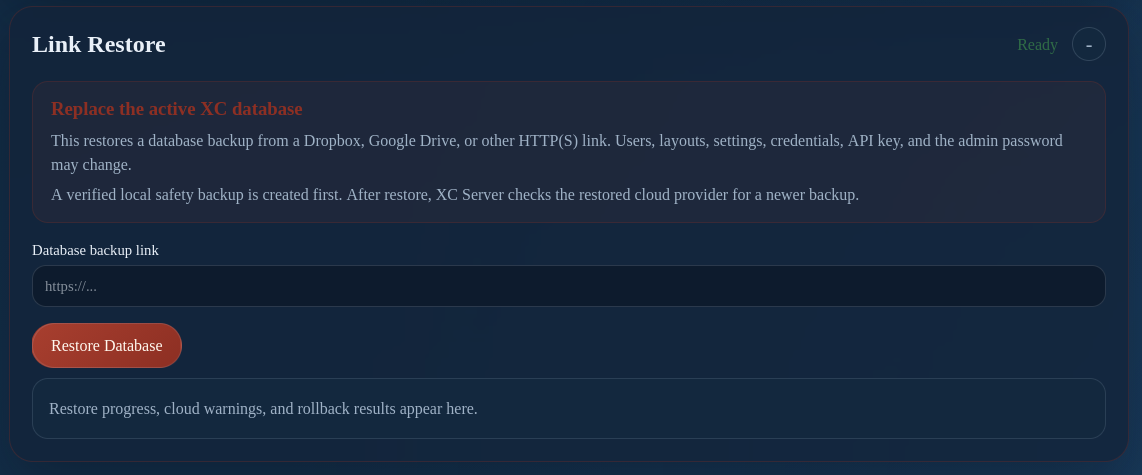
In bootstrap mode, confirm which database will become authoritative before restoring. If the server is already paired, do not initialize a replacement database without owner approval. Keep the page open while restore progress is displayed, then verify the server status, paired devices, and logs before reconnecting clients.
Restore from a backup link
- Confirm the backup's date and which database it contains. Preserve the current installation using the backup instructions.
- Open Link Restore in the Server Console. Complete any requested section-PIN unlock and obtain editing access when the console requires it.
- Paste the Dropbox, Google Drive, or other supported HTTP(S) backup link into Database backup link.
- Review the replacement warning, then select Restore Database and complete any confirmation.
- Keep the page open while progress is displayed. Read the result, including cloud warnings or rollback information.
- Verify the restored users, layouts, settings, paired devices, and server logs before testing a player.
On an existing database, the server creates a verified local safety backup before replacement. Restored users, layouts, settings, and stream credentials may change; the server administrator and API keys remain server-local. After restoration, the server checks the restored cloud provider for a newer backup, so review the completion message before assuming the supplied link is the final database state.
For a new server, return to First XC Server Connection. For a lost desktop connection or a server left in bootstrap mode, use XC Server Recovery.