Restore a Database Backup
Restore a known-good backup when configuration or database content needs to be recovered. Before replacing data, preserve the current installation.
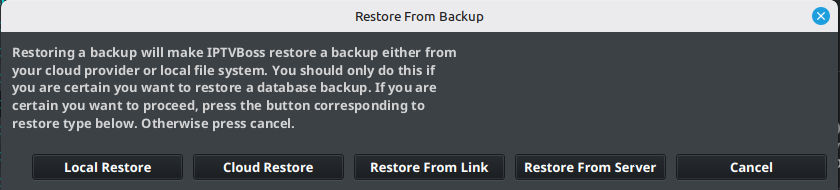
Choose the restore source
Open the desktop Settings menu and select Restore Database Backup. Choose the source that holds your database backup:
| Source | Use when |
|---|---|
| Local backup | The backup file is on this computer or accessible storage. |
| Cloud backup | The backup is available through the configured cloud provider. |
| Restore From Link | You have a supported download link to the backup. See URL restore. |
| Server backup | The backup belongs to an XC Server. A paired installation opens its server dashboard; an unpaired installation opens server settings so it can connect first. |
Restore and verify
- Finish operations that write to the database.
- Confirm the backup's date and which installation it belongs to.
- Select the backup through the matching restore option.
- Read the confirmation and verify which current database will be replaced.
- Allow restoration and database reload to finish.
- Confirm that the expected sources, layouts, users, and settings are present.
- Follow After a successful restore to synchronize and verify output.
For a backup removed from Dropbox, use Recover a deleted Dropbox backup. To initialize or restore a server through its browser console, see Link Restore.
If the backup fails to restore, retain the current files and collect Logs and Diagnostics. Follow Resetting IPTVBoss before considering manual deletion or a full reinstall.