Sources Manager
Sources Manager is the main screen for reviewing, editing, and synchronizing playlist sources and EPG sources. Open it from Sources → Sources Manager.
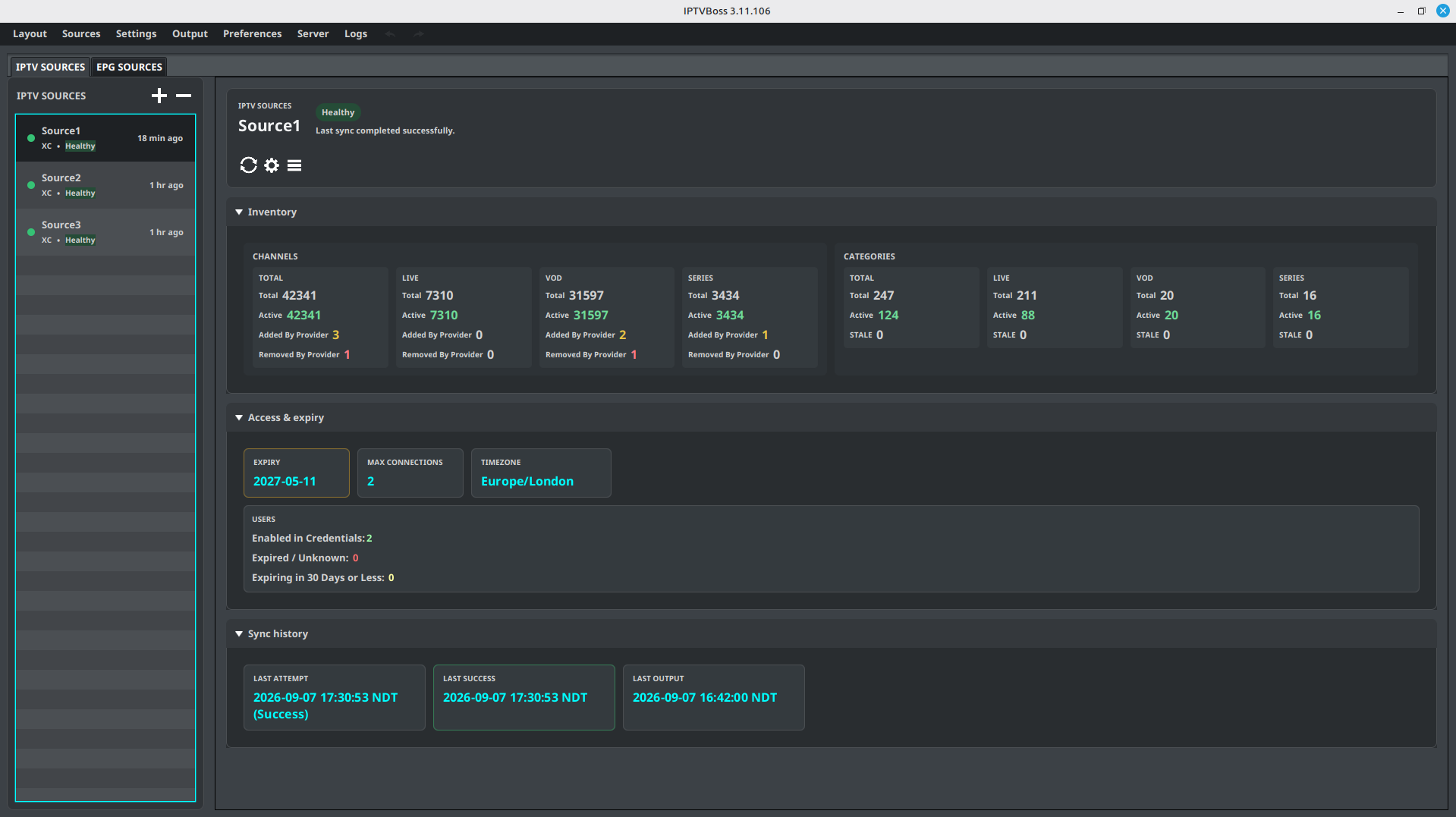
The Sources Manager now separates playlist and guide maintenance into two tabs: IPTV Sources and EPG Sources. Each tab uses a split view with the source list on the left and the selected source’s health, details, actions, and history on the right. The detail panels adapt to the available window size.
Select an item in a list to populate its details and enable actions for that source. Each list row shows a health indicator, source type, health label, and last successful sync. Double-click a playlist or EPG source to open its settings.
Understand source health
The selected source header and its list row can show:
- Healthy — the last sync completed successfully.
- Needs attention — the source has not been synced, a sync was skipped or is running, a playlist category needs attention, or an XC account is expired or expiring within 30 days.
- Sync failed — the last sync did not complete successfully.
- Sync cancelled — the last sync was cancelled before it completed.
- Built-in — the selected EPG is the built-in dummy source.
The health badge summarizes the source state; it does not replace reviewing the last attempt, last successful sync, and last output in Sync history. A source that is still syncing can be marked as needing attention until the operation completes.
Playlist sources
The playlist section shows the configured M3U, Xtream Codes, and custom sources. The details panel can include the source name, expiry, connection limit, time zone, channel totals, category totals, user status, and the last attempt, successful synchronization, and output times.
Playlist toolbar
 Add Source opens a menu. Choose Add M3U Source, Add XC Source, or Add Custom Source from that menu. See Adding Playlists for M3U and XC connections, or Custom Sources for manually entered channels.
 Remove Source(s) deletes the selected sources after confirmation. Review dependent layouts and output before removing them.
Selected-source actions
 Sync downloads and processes the selected playlist source now. This can add new categories/channels, update existing data, and process deleted channels according to the source and category settings. The progress operation can be cancelled.
 Source Settings opens the editor for the selected source. Double-clicking the source does the same thing.
 More opens a menu containing View Added, View Removed, and Add EPG.
Use View Added or View Removed to review recent provider changes. Add EPG creates an EPG source from information available in the selected playlist when that workflow is supported.
Use Sync on one selected source when testing a change. Use the global Sources → Sync All Sources command when all configured playlist sources should be refreshed.
Playlist detail sections
The selected playlist source is organized into collapsible sections:
- Inventory shows channel and category metrics in separate TOTAL, LIVE, VOD, and SERIES columns. Channel metrics include Total, Active, Added By Provider, and Removed By Provider. Category metrics include Total, Active, and Stale.
- Access & expiry shows XC expiry, maximum connections, timezone, and the source-user summary when those values apply. User counts can be selected to open the relevant user-management view.
- Sync history shows the last attempt, last successful sync, and last output.
The Added By Provider and Removed By Provider values are interactive when they are non-zero. Select one to review the added or removed channels for that content type. The overall TOTAL values open the unfiltered change list.
For M3U and Xtream Codes sources, category metrics are also interactive. Select Total, Active, or Stale in the category section to open Category Manager for the selected source. Selecting a content-type column opens that type; selecting the overall TOTAL column shows all content types. The category manager opens with the matching All, Active, or Stale status filter already selected. Use Disabled there to review categories excluded from the source.
The Inventory, Access & expiry, and Sync history expansion choices are remembered. The inventory wraps into a narrower layout when the window is reduced. Fields that do not apply to an M3U or custom source are hidden rather than treated as zero.
Sync on Start
M3U and Xtream Codes source settings include Automatically Sync Source on GUI Start. Enable it when the source should be synchronized whenever the desktop application starts. A source that has never been synchronized is also eligible for its first sync; safe-mode sources are excluded.
At GUI startup, IPTVBoss first loads the saved source and channel data. It then collects eligible sources into one sequential queue and starts that queue after the main startup and any required database, cloud, or sync-lock work is ready. The main window may therefore appear before the startup sync begins. The progress view is titled Syncing Startup Sources and identifies the current source and its position in the queue.
If a database transition is active, restored sources are loaded without an automatic GUI source sync. Run Sync manually after the transition is complete.
The same cancellable workflow is used for a selected-source sync, Sync All Sources, startup synchronization, and a sync started after saving a source. Select Cancel in the progress view to request cancellation. The current network or processing step may finish before the cancellation takes effect; remaining sources in a batch are skipped. The source is recorded as Sync cancelled, and you can run it again later.
EPG sources
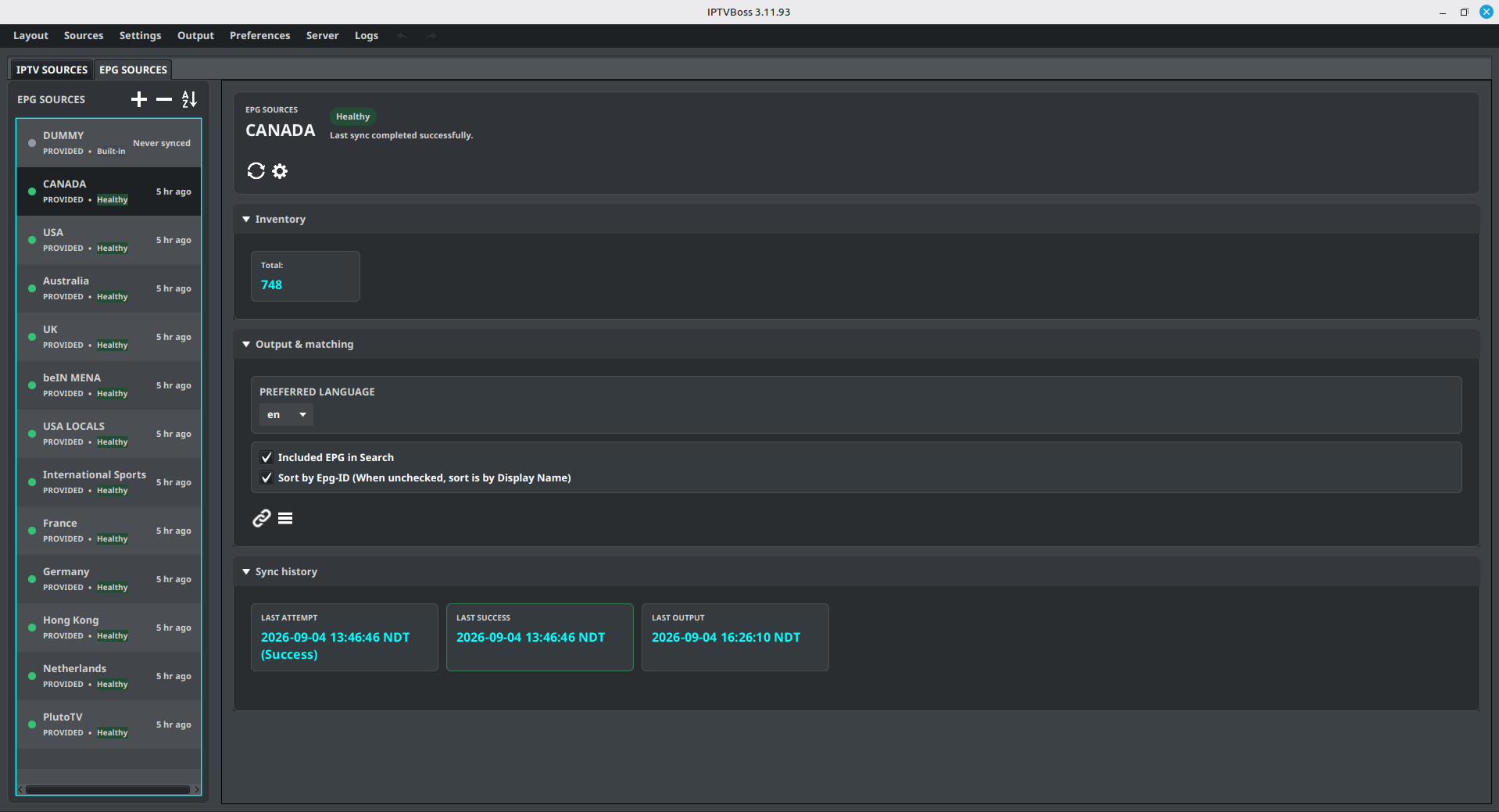
The EPG section lists configured EPG feeds, including the built-in dummy source when present. The details panel shows the source name, channel count, synchronization/output times, preferred language, and whether the source is available for mapping or output.
EPG toolbar
- Add EPG creates a new XMLTV or other supported EPG source. Follow Adding an EPG Source.
- Remove EPG(s) removes selected EPG sources after confirmation. Check current channel mappings first.
 Sort A to Z sorts the EPG source list alphabetically and saves the new order. When multiple sources are selected, the selected range is sorted.
Selected-EPG actions
- Sync downloads and processes the selected EPG source now.
- EPG Settings edits the selected EPG source. The built-in dummy source opens the Dummy Guide inventory instead.
 Map EPG to Source opens the workflow that assigns the selected EPG to playlist sources.
- More opens Output Logo Template for the selected EPG source and Output All Logo Templates for all EPG sources.
The EPG details are organized into Inventory, Output & matching, and Sync history. Inventory shows the total EPG channel count. Output & matching contains Preferred Language, Included EPG in Search, Sort by Epg-ID (When unchecked, sort is by Display Name), mapping, and logo-template actions. Preferred Language controls the language selected from multilingual EPG data when the source provides that choice.
The Inventory, Output & matching, and Sync history expansion choices are remembered. The built-in dummy source is shown as Built-in and cannot be synced manually. Custom EPG sources can also display a message when their sync window or daily sync limit prevents a manual sync.
Dummy Guide inventory
Open Sources → Dummy Guide Inventory to create, find, edit, or remove basic dummy guides and AEDs. See Dummy Guides and Inventory for filters, usage counts, import/export, and deletion guidance.
Synchronization workflow
- Select the source to inspect.
- Review its last attempt and last successful synchronization time.
- Select Sync and wait for the progress operation to finish. For a playlist source sync, select Cancel if the in-progress sync should stop; wait for the progress view to close before starting another operation.
- For a playlist source, use More to review added or removed channels when needed, or select a non-zero Added By Provider/Removed By Provider inventory value for a content-type-specific list.
- Check affected layouts before generating output.
Synchronization can update source metadata and layout content. Avoid starting another source operation while the current progress dialog is running. A cancelled or failed playlist-source synchronization does not run the successful-sync cleanup; review the source status and run it again when ready.
Note
Sources Manager is for source maintenance. Use the New Channel Manager and New Category Manager to control how future source changes are placed into layouts.