Mapping Channels
Map a playlist channel to an EPG channel so the generated guide contains programme information.
Open the layout editor
- Open Layout Manager.
- Select the layout that contains the imported playlist channels.
- Open the layout in Layout Editor.
- Select a channel that needs EPG data.
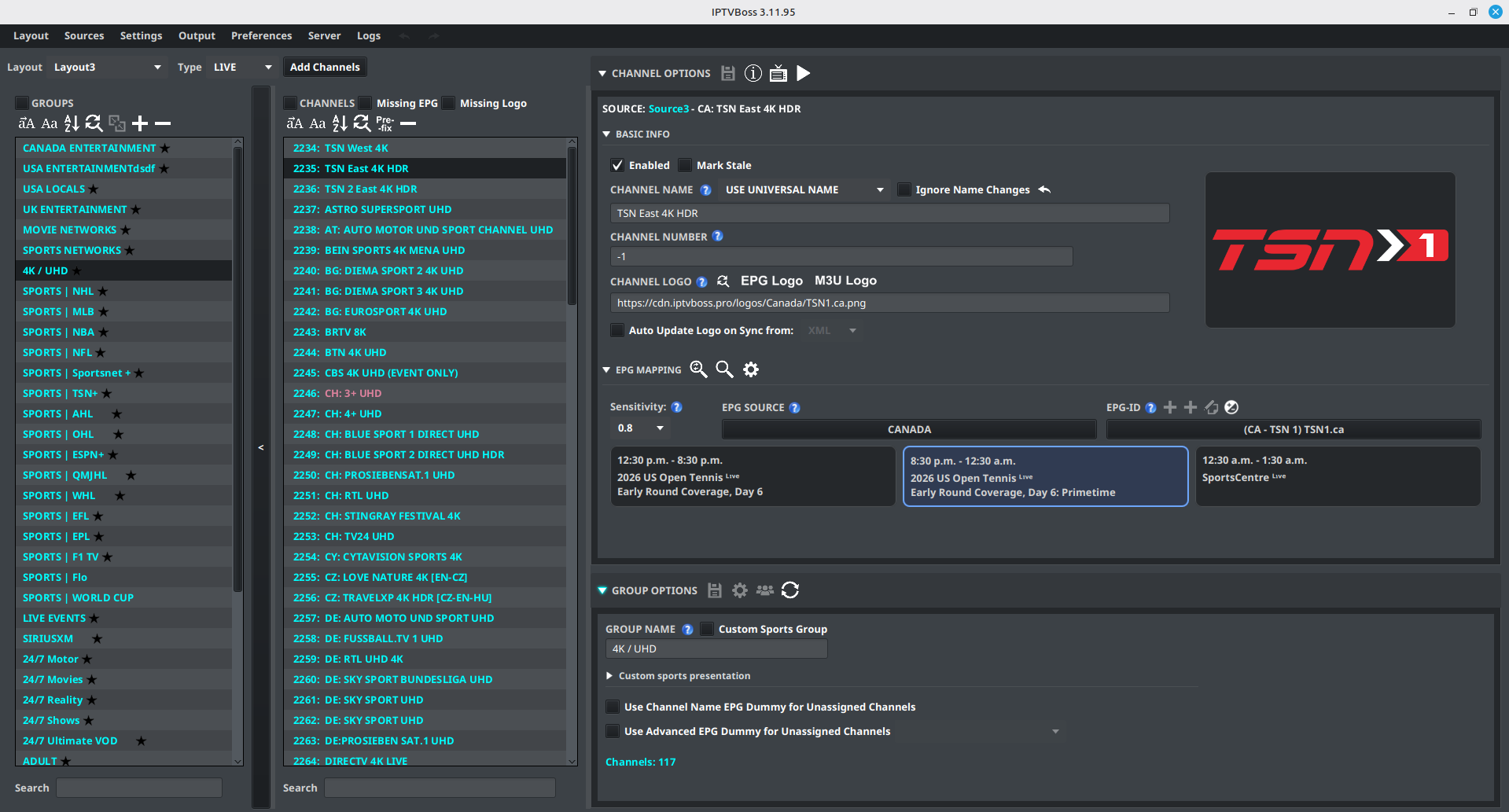
Choose EPG sources for mapping
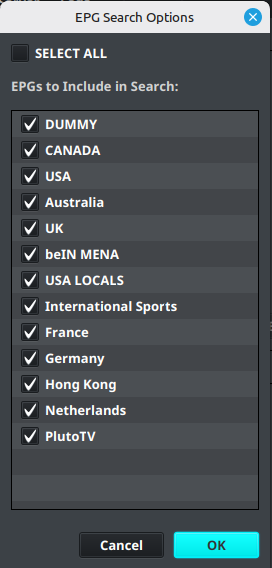
 EPG Search Options controls which EPG sources are searched during automatic and manual channel mapping. It does not add EPG sources or make guide data available.
- In Channel Options, expand EPG Mapping if it is collapsed.
- Select the EPG Search Options settings cog beside the
 Auto and
  Manual mapping buttons. Its tooltip is Search Options.
 - Enable only the EPG sources that should be considered for the current mapping work.
- Select OK to save the search scope.
Keep the search list focused on the sources that match the channels you are mapping. For example, enable only USA EPG sources while mapping USA channels, then disable those and enable only Canada EPG sources while mapping Canadian channels. This reduces unrelated matches and makes the results easier to review.
Note
The source selection affects mapping searches; it does not disable synchronization or remove a source from the application. Re-enable a source later when it should be included in another mapping pass.
Search for an EPG match
Choose the mapping method for the selected channel:
- Auto attempts to assign a match automatically using the selected sensitivity.
- Manual shows likely matches and lets you choose one.
For manual mapping:
- Select Manual in the EPG Mapping header.
- Review the suggested matches.
- Select the EPG source and channel that match the playlist channel.
- Review the channel name, identifier, and logo shown in the result.
- Confirm the selection.
- Select
 Save Channel(s) in the Channel Options header.
Use the channel’s country, network, and service name to distinguish similarly named results. Do not select a match only because its display name looks similar.
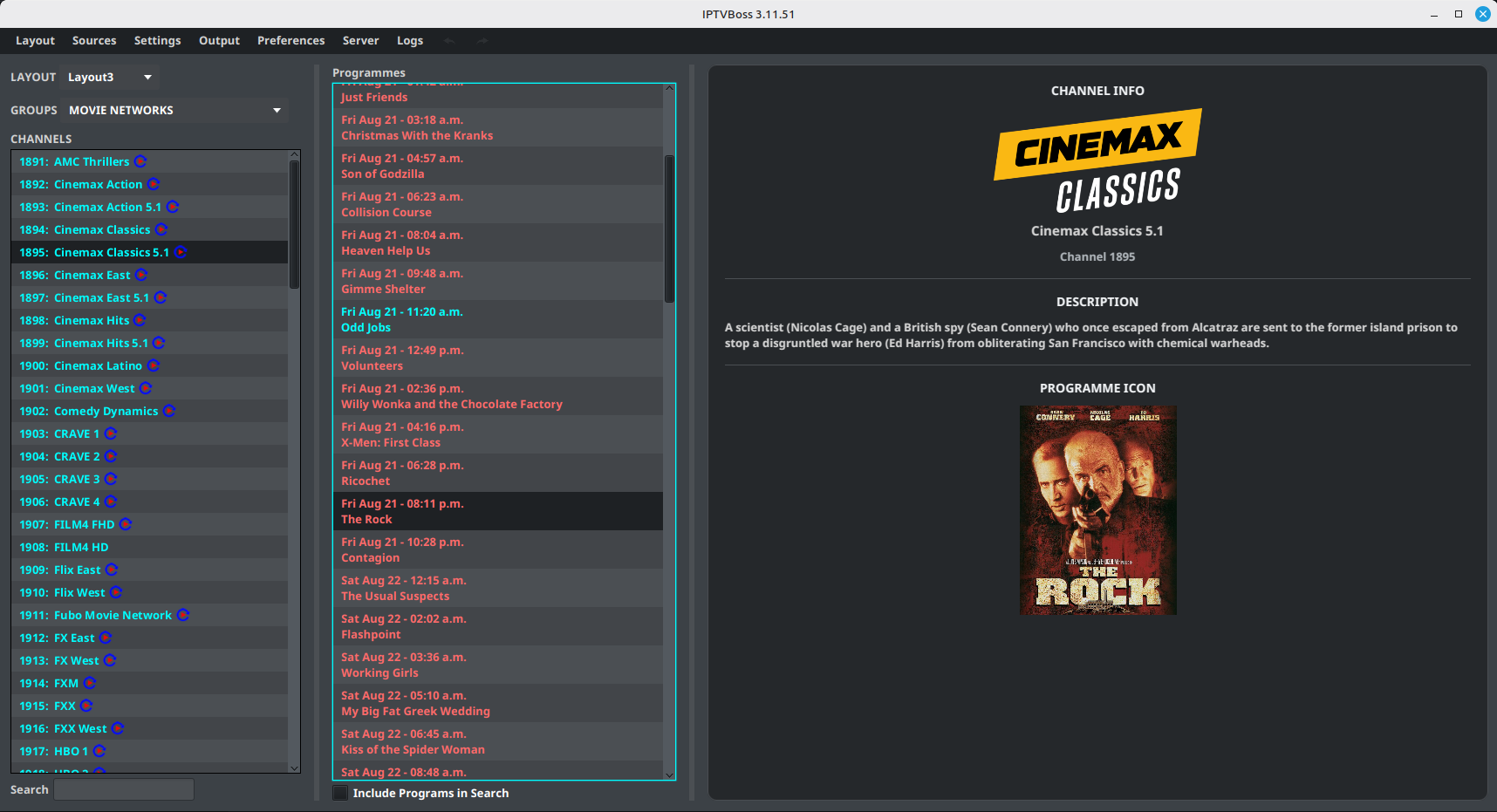
PRO Use EPG Browser to inspect the guide data returned for a mapped channel.
Review missing mappings
- Return to the channel list in Layout Editor.
- Enable Missing EPG beside the CHANNELS heading to show live channels without a usable EPG mapping.
- Repeat the search with a shorter or alternate channel name. Enable Missing Logo when you also need to review channels without a source logo; when both filters are enabled, either condition can match.
- Leave the channel unmapped when no reliable match exists.
Warning
An incorrect EPG match is worse than a missing match because it displays unrelated programme information.
For manually configured guide entries, see Dummy Guides and Inventory. For programme title and description formatting, see EPG Layout.
Confirm the mapping
The mapping is ready when the selected channel shows its EPG source and channel identifier and the layout can be saved without an error.
Free and Pro
PRO Automatic mapping and built-in EPG tools require Pro. Manual assignment remains the appropriate fallback when automatic tools are unavailable. See Free vs Pro.