EPG Browser
PRO See Free vs Pro.
The EPG Browser displays programme data for the current EPG mappings in the selected layout. It does not browse every channel in every EPG source: a playlist channel must already have an EPG source and channel identifier assigned before its guide data can appear here. Browsing data does not create or change a mapping.
Open the EPG Browser
- Open Sources.
- Select EPG Browser.
- Select a Layout.
- Select a Group.
- Select a Channel.
- Confirm that the channel has a current EPG mapping in Layout Editor.
- Review the programmes, descriptions, and programme icons returned for that mapping.
Double-click a channel in the EPG Browser to return to Layout Editor with that channel selected.
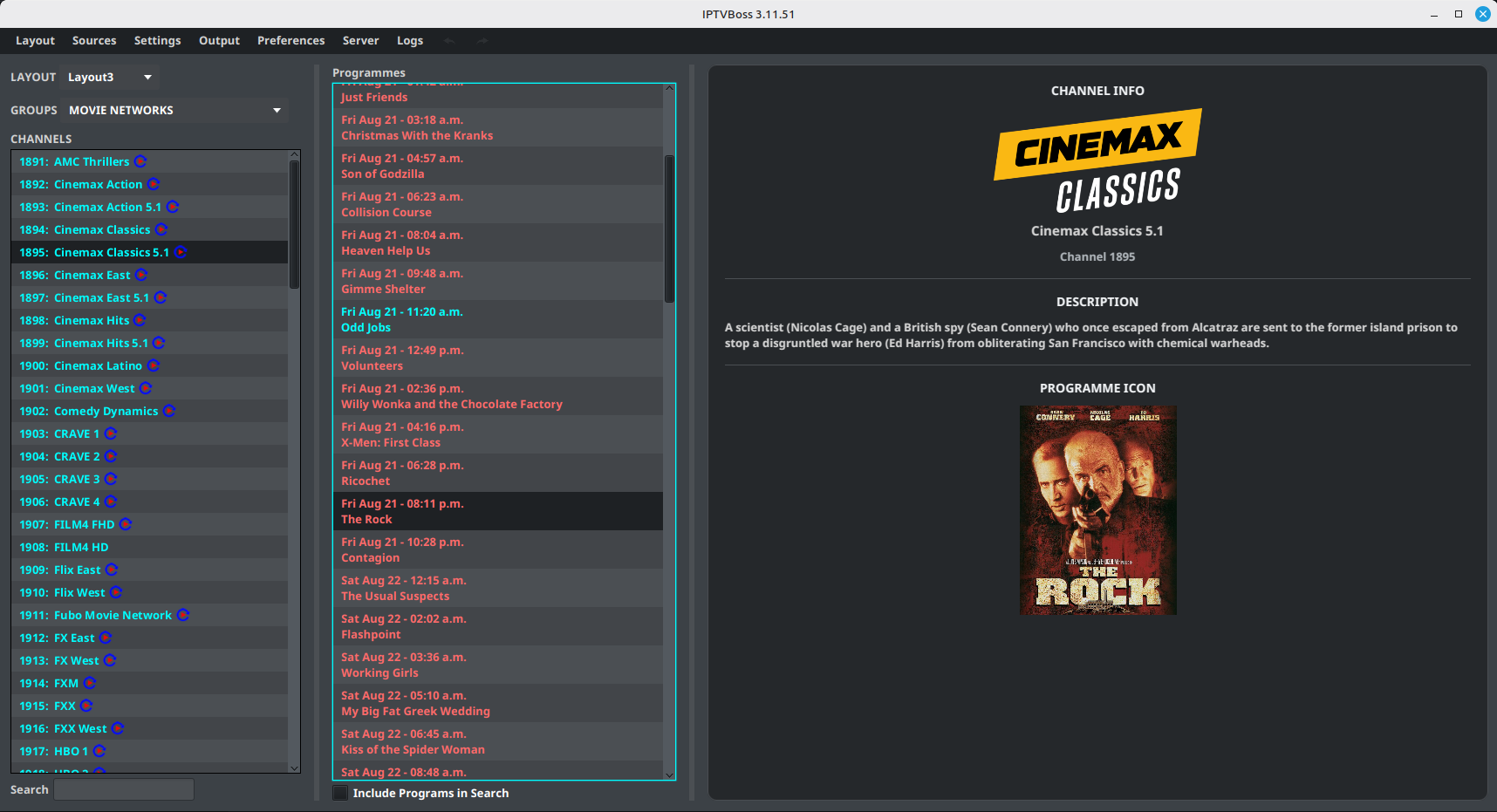
The redesigned EPG Browser uses three resizable panes for layouts and channels, programmes, and channel details. Resize the window or pane boundaries to give more space to the list or the programme information; this screen uses adjustable panes rather than collapsible sections.
Search guide data
Use Channel Mapping to assign an EPG source and channel identifier first. The EPG Browser then searches the channels and mappings available in the selected layout:
- Search for a mapped playlist channel using a distinctive channel, network, or service name.
- Clear the search text before trying a different term.
- Compare the country, network, identifier, and programme data.
If a mapped channel has no programmes, confirm that its EPG source synchronized successfully and that the source contains data for the requested date. An unmapped channel will not become browseable merely because its source contains matching EPG data.
Browse versus map
- Use Channel Mapping to assign an EPG source and channel identifier to a playlist channel.
- Use EPG Browser to inspect the guide data for that current mapping in the selected layout.
Do not treat a visually similar channel as a reliable mapping without checking its identifier and programme data.