New Channel Manager
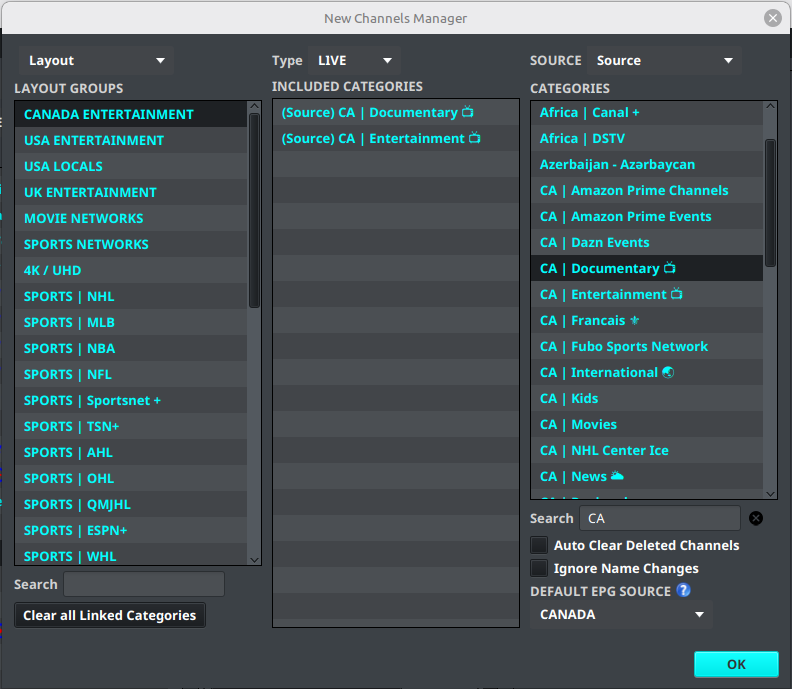
The New Channel Manager controls where newly discovered channels are placed when a source adds them. It does not reorganize every existing channel in a source. Instead, it creates a rule for a layout group:
When a new channel belongs to one of the group's included categories, add that channel to the group automatically.
This is useful when a provider regularly adds channels to categories that you already use in a layout.
Create a new-channel rule
- Open Layout → New Channel Manager.
- Select the Layout to configure.
- Select the content type: LIVE, VOD, or SERIES.
- Select the Source. The Categories list now shows the enabled categories for that source and content type.
- Select a Layout Group on the left. The Included Categories list shows the categories already assigned to that group.
- Drag categories from the Categories list into Included Categories.
- Repeat for each layout group and category combination that should receive new channels.
Changes to the included-category list are saved as the group is updated. To remove a category, select it in Included Categories and right-click it. Use Clear all Linked Categories only when all category rules for the displayed groups should be removed.
What happens during a source update
When the provider adds a channel, IPTVBoss checks its source and category against the rules in every layout. If the category is included in a layout group's rule, IPTVBoss adds the channel to that group automatically. The channel is marked as new and receives the group's position and other applicable layout behavior.
Source synchronization now handles this automatic placement more efficiently when a large playlist adds many channels. The rule itself is unchanged: it applies only to newly discovered channels whose source and category match the selected group.
The rule only applies to new channels. It does not move existing channels between groups, and it does not make a disabled provider category available. To change existing content, use the Channel Importer or organize the channels in the Layout Editor.
Source Categories options
The controls below the Source Categories list modify the selected source categories. Select one or more categories first, then review the current values shown by the controls. Changes are saved immediately; they are not layout-group rules.
Auto Clear Deleted Channels
When enabled, channels that the provider reports as deleted from this category are removed during deleted-channel cleanup without waiting for the source's normal removal delay. Leave it disabled if you want IPTVBoss to retain deleted channels temporarily in case the provider's feed is incomplete or changes back.
Ignore Name Changes
When enabled, IPTVBoss keeps the channel name currently stored in IPTVBoss when the provider later sends a different name. The provider's name can still be recorded as the original provider name, but it will not replace the name you use in IPTVBoss. This is useful for preserving custom names or formatting.
Default EPG Source
Choose an EPG source to use for new or refreshed Live channels in the selected category. During source processing, IPTVBoss first tries to match the channel's existing TVG ID in that EPG source; if there is no direct match, it can run the source's automatic EPG search. Choose NO EPG when the category should not receive a default EPG source.
The Default EPG Source control is disabled when multiple categories are selected. Select one category to edit its default EPG source. The setting applies to the source category, not to every channel already in the layout.
See Choose the right category tool for the difference between source inclusion, manual import, and automatic layout rules.