Logs and Diagnostics
Logs record startup, source synchronization, EPG imports, output generation, and errors. After sanitizing a relevant log, include it when asking in the IPTVBoss Discord or opening a support ticket through the member portal.
View logs in IPTVBoss
- Open Logs.
- Select View Logs.
- Choose the log type.
- Select the date or log file that covers the failed operation.
- Review the entries around the time of the failure.
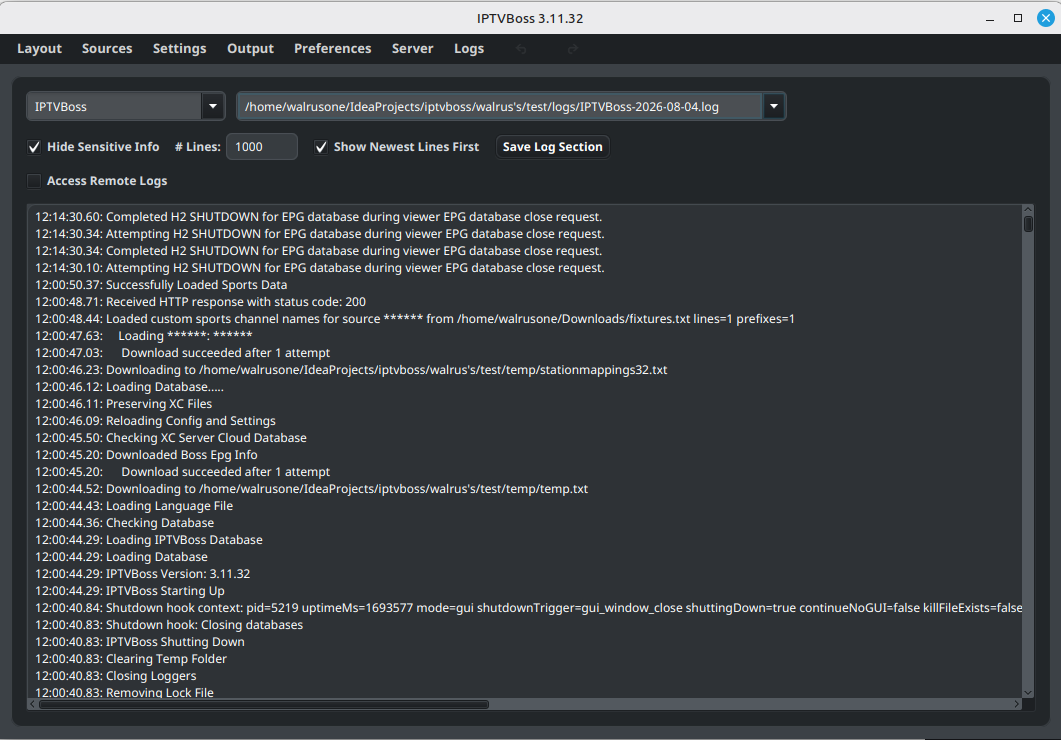
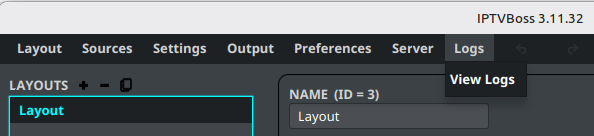
Find the log files
IPTVBoss stores logs in a logs directory under its application data directory. The application’s log viewer is the safest way to identify the active data location.
Log files use the logger name and date, for example:
Additional log types may be present for EPG or advanced editing operations.
Collect useful diagnostics
Record:
- IPTVBoss version
- Operating system and processor architecture
- The action that failed
- The approximate time of the failure
- The source, EPG source, layout, or output involved
- The relevant log entries
- Whether the problem occurs after restarting IPTVBoss
Warning
Inspect logs before sharing them. Remove credentials, private URLs, tokens, license keys, email addresses, and customer information.
Change log detail
If support asks for more detail, review the log-level and time-zone settings in Settings. Change diagnostic settings only as requested, and restore normal settings after collecting the evidence.
See application folder locations for desktop defaults and Server Console Logs for browser-based server diagnostics. Choose a support path when the diagnostics are ready.