XC Server Users
IPTVBoss Pro
XC Server requires Pro.
Use User Management to control users whose layouts, source credentials, and output links are managed through the XC Server. Changes require console editing access and may be unavailable while another editor or synchronization process owns the database.
Open User Management
- Open the Server Console.
- Unlock editing with the required administrator access.
- Open User Management.
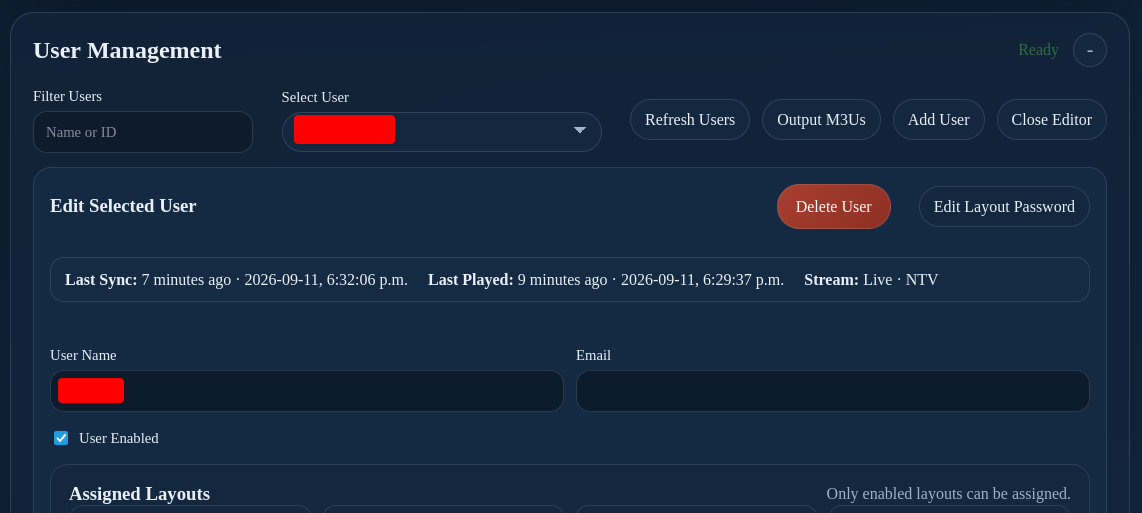
The selected-user summary can include the user's last successful synchronization, last playback, and current stream. See User Activity for the server-wide activity table.
Add or edit a user
- Select Add User to create a user, or select an existing user.
- Enter the User Name and optional Email.
- Enable User Enabled when the user should receive output.
- Assign one or more enabled layouts.
- Add or update the user's source credentials.
- Save the changes.
- Wait for any backup or cloud-sync operation to finish.
Both the user and the assigned source credentials must be enabled. The assigned layout must also be enabled before output is expected.
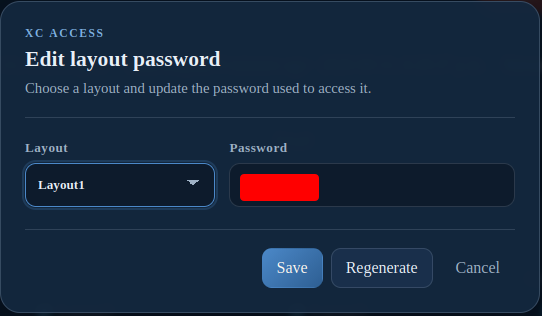
Each assigned XC-enabled layout has its own XC login password. In Edit User, select Edit Layout Password, choose the layout, then either save a 6–64-character password (A-Z, a-z, 0-9, -, ., _, or ~) or select Regenerate for a new 12-character lowercase password. Passwords are unique across a user’s layouts and changing one affects only that layout’s XC access.
Refresh provider expiry
- Select the user in User Management.
- Find the source credential in the selected-user summary.
- Select Refresh expiry beside its expiry and connection limit.
- Wait for the result and the user details to refresh.
The action appears for supported enabled credentials: Xtream Codes sources and password-backed M3U sources with an XC URL. It uses the user's alternate provider URL when configured and requires console editing access with permission to manage users. A database operation or another editor may temporarily block it.
An unchanged expiry is a successful confirmation. Failed, rate-limited, or invalid responses keep the saved values. If the provider omits expiry but supplies a connection limit, the previous expiry is kept and the limit is updated. A rejected login makes both values unknown. Returned metadata is saved and a user backup is scheduled.
These source expiry values are separate from the XC account expiry calculated for each layout. Manual refresh remains available when Disable NoGUI user checks is enabled for the source.
Output and access actions
- Use Output M3Us to generate or review user playlist output.
- Use Edit Layout Password to change or regenerate the password for one assigned XC-enabled layout.
- Use Delete User only after confirming that no player, layout, or customer still depends on the account.
Warning
Changing a layout password changes access for that layout. Deleting a user can remove access to assigned outputs. Confirm the intended user and layout before either action.
Verify a server user
- Confirm the user is enabled.
- Confirm the assigned layout is enabled.
- Confirm the source credentials are present and enabled.
- Confirm the generated M3U link.
- Confirm the XMLTV link when XC Server output is used.
- Review server logs after saving changes.
Server changes affect the shared authoritative database. Do not edit the same users from another IPTVBoss or XC Server process at the same time.
See provider credentials for the shared source/user model, then Connect a Player to test delivery.