Cloud Provider Setup
IPTVBoss can publish edited M3U/XML output to Dropbox or Google Drive. Before selecting either provider in IPTVBoss, create a developer app in the provider's console and collect the credentials that the application requests.
This setup is separate from the cloud output link workflow: the developer app gives IPTVBoss permission to access your account, while the layout's output settings determine which files are published.
Note
Cloud output and cloud database backup are different features. A Pro account is required for database cloud synchronization and backup. You can use a cloud provider for playlist/EPG delivery without enabling database backup.
Open the IPTVBoss cloud settings
- Open Settings → IPTVBoss Settings.
- Expand Cloud & Backups.
- Select Cloud Sync Enabled.
- Select Dropbox or Google Drive from Cloud Provider.
- Enter the provider credentials described below.
- Select Authorize and complete the provider's authorization flow.
- Save the settings.
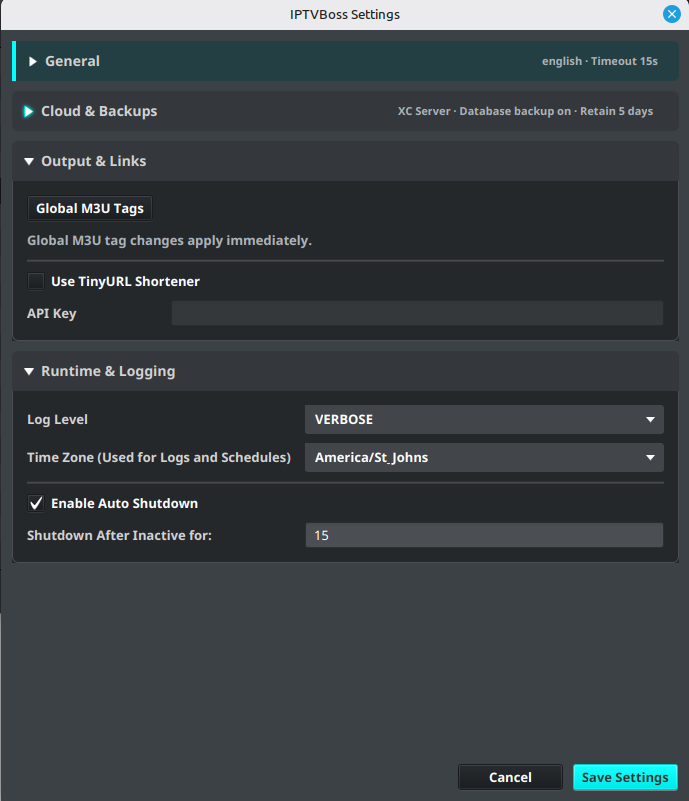
The cloud provider fields appear after Cloud Sync Enabled is selected. The settings dialog may display App Key and App Secret for Dropbox, or Client ID and Client Secret for Google Drive.
Configure your provider
Choose the provider you intend to use. You do not need to complete both workflows.
Create the Dropbox app
- Sign in to Dropbox. A free Dropbox account is sufficient for basic use.
- Open the Dropbox App Console.
- Select Create app.
- Choose Scoped access.
- Choose App folder. This keeps the app rooted in its own folder under Dropbox's Apps folder.
- Enter an app name and create the app.
- Open the app's Permissions tab and enable the permissions needed by IPTVBoss:
files.content.readfiles.content.writefiles.metadata.readsharing.readsharing.write
- Select Submit or save the permission changes.
- Open the app's settings page and copy the App key and App secret.
IPTVBoss uploads, replaces, lists, downloads, and deletes files in the app folder. It also creates or reuses shared links for published output, which is why the sharing permissions are needed. Dropbox's developer guide explains the difference between App folder and Full Dropbox access; App folder is the recommended least-privilege choice here.
Link Dropbox to IPTVBoss
- In IPTVBoss Settings → Cloud & Backups, select Dropbox.
- Enter the Dropbox App key in App Key.
- Enter the Dropbox App secret in App Secret.
- Select Authorize.
- IPTVBoss displays a Dropbox authorization link. Open it, sign in, and approve access.
- Copy the authorization code shown by Dropbox and paste it into the IPTVBoss authorization dialog.
- Finish the authorization, then select Save Settings.
The authorization is for the Dropbox account that will own the published files. Do not paste a Dropbox access token into the App Key or App Secret fields.
Create the Google Cloud project and API access
- Sign in to Google and open the Google Cloud Console.
- Create a project, or select an existing project dedicated to IPTVBoss.
- Open APIs & Services → Library.
- Search for Google Drive API and select Enable.
- Open the Google OAuth configuration area. Depending on the current console layout, this may be labelled OAuth consent screen or Google Auth Platform.
- Configure the app name and support/developer email. Choose External if the app is for a normal Google account rather than an organization-only Workspace app.
- If the app is in testing, add the Google account that will authorize IPTVBoss as a Test user.
IPTVBoss requests the narrowly scoped https://www.googleapis.com/auth/drive.file permission. This permits access to the Drive files used by the app; the older drive.appdata instruction is not required by the current IPTVBoss implementation. Google documents the scope in its Drive scope reference.
Create the Google OAuth credentials
- Open APIs & Services → Credentials.
- Select Create credentials → OAuth client ID.
- Choose TVs and Limited Input devices as the application type. IPTVBoss uses Google's device-code authorization flow: it displays a URL and user code, then waits while you authorize the app in a browser.
- Create the client and copy its Client ID and Client secret.
Google's TV and Limited-Input Device OAuth documentation describes this authorization model. Keep the client secret private.
Note
Google may restrict an External app while it is in testing, including limiting who can authorize it or how long authorization tokens remain valid. Follow the status and warnings shown in the Google console. Publishing or completing Google's verification process is a Google-account/app-management decision, not an IPTVBoss setting.
Link Google Drive to IPTVBoss
- In IPTVBoss Settings → Cloud & Backups, select Google Drive.
- Enter the Google Client ID and Client secret.
- Select Authorize.
- IPTVBoss displays Google's device authorization URL and a user code. Open the URL, sign in to the Google account that should own the files, and enter the code.
- Approve the requested Drive access and wait for IPTVBoss to finish authorization.
- Select Save Settings.
Confirm cloud output
After authorization, configure a layout to use the provider destination in Layout Output Settings, then generate output and review Cloud Output Links.
If the provider is authorized but no link is produced, check that:
- Cloud Sync Enabled is still selected.
- The correct provider and credentials are saved.
- The layout has a cloud-provider folder selected.
- Dropbox permissions include file read/write and shared-link access.
- The Google account used during authorization is the intended account.
Warning
Never include app secrets, client secrets, authorization codes, or refresh tokens in screenshots, logs, or support requests. If a secret is exposed, rotate it in the provider's developer console and authorize IPTVBoss again.