Desktop GUI Settings
IPTVBoss Pro
XC Server requires Pro.
Open Settings → Server Settings in the desktop IPTVBoss application. These settings connect the desktop installation to the XC Server and control its server, network, output, security, and synchronization behavior.
Bootstrap an empty XC Server with GUI pairing
An IPTVBoss Pro desktop installation can initialize a new XC Server using the database currently open in the GUI:
- Open
https://boss.domain.com/boss.phpon the new server. - Copy the server URL and one-time pairing code shown under Link from IPTVBoss.
- In the desktop application, open Settings → Server Settings.
- Enter the server URL and pairing code, then select Link XC Server.
- Confirm that the current GUI database should become the authoritative server database.
- Wait for the upload and server bootstrap to finish, then verify the connection and backup status.
The pairing code expires and can be used only once. Confirm that the intended database is open and backed up before linking because it becomes the initial authoritative database for the server. A non-Pro installation can pair only after bootstrap has been completed.
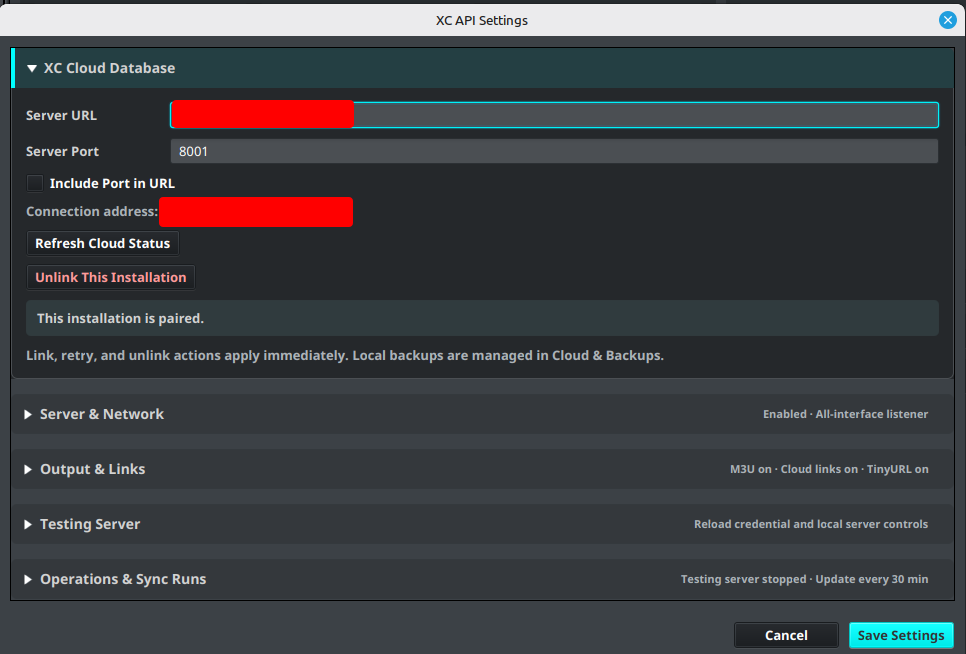
XC Cloud Database
- Enter the Server URL and Server Port.
- Enable Include Port in URL when required by the public address.
- Review the displayed connection address.
- Link the installation before enabling cloud database synchronization.
HTTP and HTTPS server URLs are accepted. IPTVBoss displays a warning when the configured endpoint uses unencrypted HTTP; use HTTPS for connections that cross an untrusted network or the public Internet. Other URL schemes are not supported.
After pairing, actions such as Refresh Cloud Status, Disable Sync, Retry Current Database, and Unlink This Installation apply immediately. Unlink This Installation removes the local pairing even when the server cannot be reached; if revocation cannot be sent, the old server-side pairing may remain until the server is reachable again.
Automatic server reloads from this client
Pairing does more than connect the desktop installation to the XC Server database. The server also provisions a client-specific, reload-only credential. IPTVBoss stores and uses this credential automatically; it does not grant general Server Console or administration access.
When the desktop client closes after producing a database backup, it asks the paired XC Server to reload after a short delay:
- If database cloud synchronization is disabled, the server reloads its local database.
- If database cloud synchronization is enabled and the cloud backup succeeds, the server reloads from the synchronized cloud database.
- If an enabled cloud backup fails or is incomplete, the client does not request a reload. This prevents the server from loading an incomplete update.
The client must be paired, XC must be enabled in its saved configuration, and the server address must be reachable. This is not a live reload after every edit; it occurs as part of the client's shutdown and backup workflow. If the server is offline, busy, or blocked by another database operation, review the client and server logs before trying again. See Paired Devices for access management and Server did not reload after a client update for troubleshooting.
Server and Network
Use Enable XC Server when this installation should provide the XC Server service. Use Block direct connections (bind to 127.0.0.1) when a native server should accept connections only from the same host, such as through a reverse proxy running on that host. Remote devices can still connect through that proxy. Clear it for direct LAN connections. Command-line and environment bind-address overrides take precedence; see Update from 3.11.16.
Enabling the XC Server does not require any layout to be enabled for XC output. The server can be used solely to deliver M3U playlists. Enable XC Enabled on a layout only when that particular layout should participate in XC Server output.
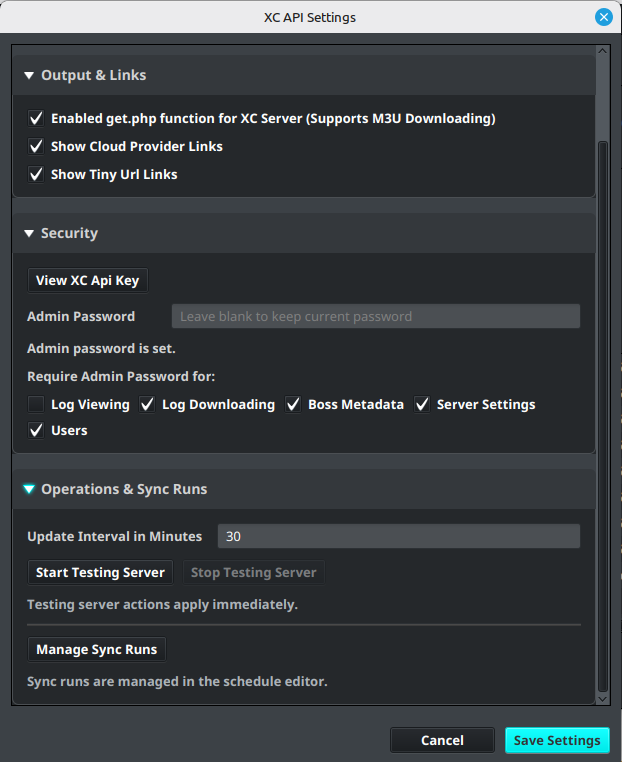
Output, links, security, and operations
- Output and Links controls M3U downloads, cloud-provider links, and TinyURL links. Enable only the link types required by the deployment.
- Security controls the administrator password and which console areas require administrator protection.
- Operations and Sync Runs contains the update interval, testing-server controls, and Manage Sync Runs. Use these only when you understand their effect on the shared server.
Warning
Never publish an administrator password, API key, pairing code, or private server address.