Importing Channels
Open Layout Editor, select the destination layout, then follow the matching import workflow below.
Select Add Channels in the Layout Editor to open Channel Importer. The importer has two modes:
- Source Import adds groups and channels from an imported M3U or Xtream Codes source.
- Layout Import adds groups and channels that already exist in another layout.
Use Switch to Layout Import or Switch to Source Import at the bottom of the dialog to change modes. The selected mode determines whether the left-hand list is labeled Source or Layout.
Import from a source
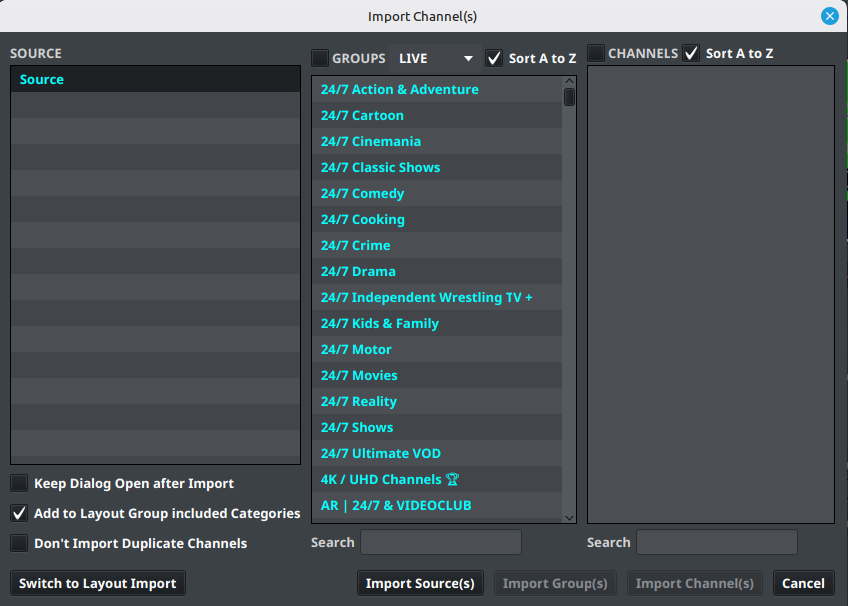
In Source Import mode:
- Select a source in the left panel.
- Select a group in the middle panel to display its channels in the right panel. Use the GROUPS and CHANNELS checkboxes when you want to select items in bulk.
- Select one or more groups or channels to import. Use the search field under a panel to find a matching item.
- Choose Import Source(s), Import Group(s), or Import Channel(s), depending on what is selected.
The LIVE dropdown filters the source content by the available content type. Sort A to Z controls the order shown in the group and channel lists. Sorting changes the display order in the dialog; it does not by itself reorder the destination layout.
The source importer also provides these options:
- Keep Dialog Open after Import leaves the importer open so you can repeat imports from the same source.
- Add to Layout Group included Categories adds imported source categories to the destination layout group when that grouping option is available. Use it when the source categories should become part of the selected layout group; leave it off when the imported categories should remain separate.
- Don't Import Duplicate Channels skips channels that are already present instead of adding another copy. Enable it for incremental imports and review the destination before disabling it.
Import from another layout
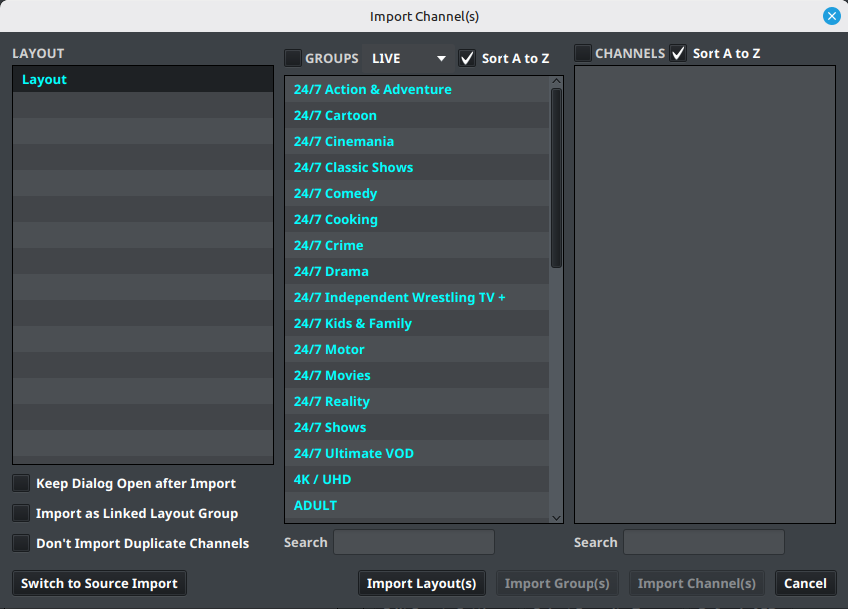
In Layout Import mode:
- Select the source layout in the left panel.
- Select a group in the middle panel to display its channels in the right panel.
- Select the groups or channels to bring into the current layout.
- Choose Import Layout(s), Import Group(s), or Import Channel(s).
The layout importer is useful when a second layout needs some of the same channel organization as an existing layout. It copies selected content into the layout currently open in the editor; confirm the destination layout before importing.
For transferring a layout between installations, use layout file import/export.
Linked Layout Groups
Enable Import as Linked Layout Group when the imported group should remain linked to its originating layout group rather than becoming an independent copy. This is useful when several layouts should reuse the same group structure and follow its source layout over time.
See Linked Layout Groups for maintenance and broken-link recovery.
Leave the option disabled when the destination needs to be edited independently. A linked group should be treated as shared configuration: review the originating layout before making changes, and verify the resulting channels in every layout that uses the link.
Avoid accidental imports
Before selecting an import button, confirm the current mode, the source or layout in the left panel, the selected groups and channels, and the destination layout. If the result is not expected, undo or remove the imported items before generating output.
Next, map EPG data and check the layout output.